Whether you're running a society day, a corporate outing, or a casual weekend competition, how you organise your groups can make or break the day. Get it right and you'll have smooth pace of play, happy players, and an event that runs like clockwork.
This guide walks you through exactly how to set up groups in Fourball — from automatic assignments to manual swaps — so every flight is balanced and ready to go.
Why Grouping Matters
Grouping isn't just admin — it directly affects the experience on the course. Well-organised groups mean:
- Better pace of play — balanced groups keep the field moving and prevent bottlenecks on the course
- Social dynamics — mixing players who don't know each other creates networking opportunities at corporate events, while keeping friends together works better for society days
- Fair competition — spreading handicaps across groups prevents any one group from dominating
- Easier scoring — when groups are set up properly, score entry is faster and less error-prone
How Automatic Grouping Works
When you add players to a round in Fourball, the app automatically assigns them to groups of four (foursomes). As each player is added — whether by the organiser typing names or by players joining via QR code — they slot into the next available group.
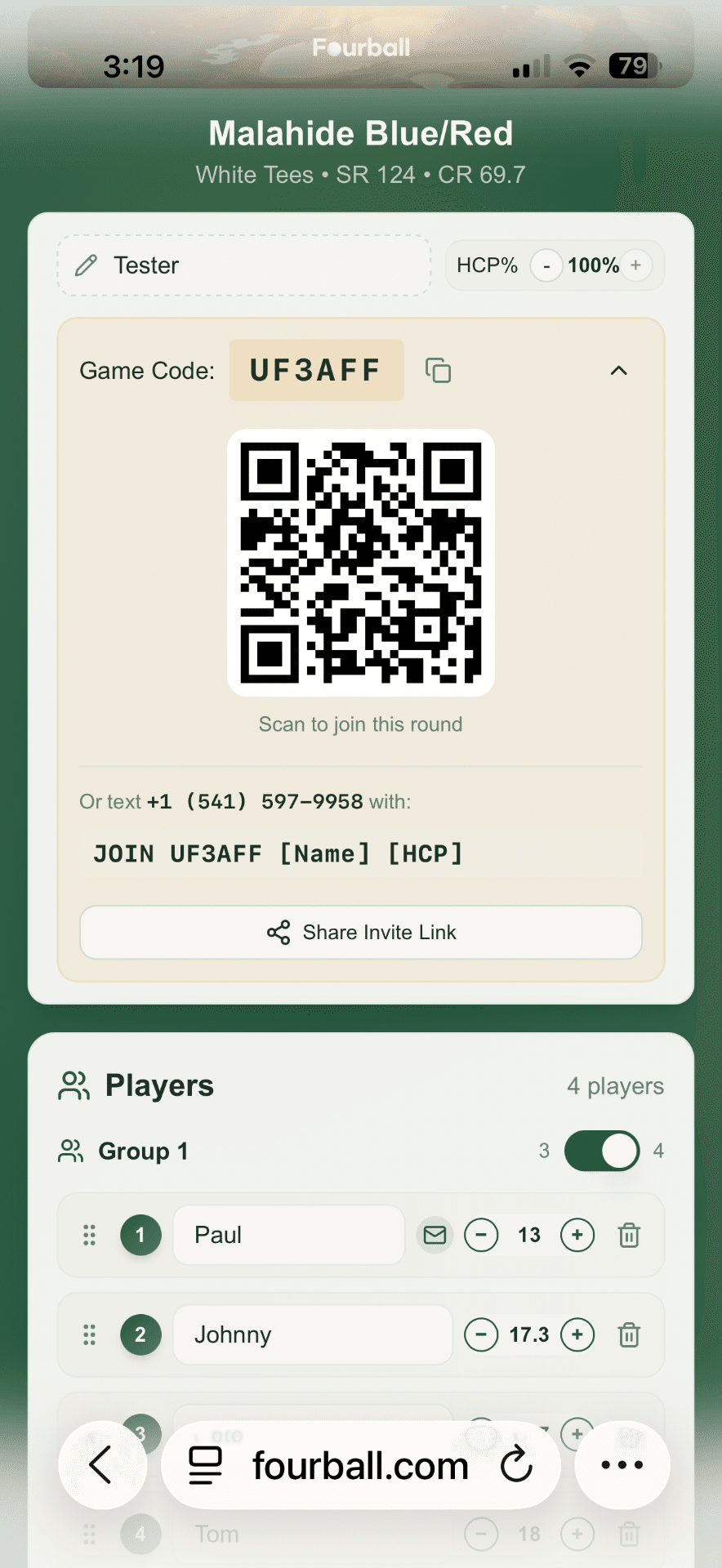
This means you don't need to manually create groups or drag players around — the app handles the basics. You only need to intervene if you want to customise the arrangement.
Adjusting Group Size: Threesomes vs Foursomes
By default, Fourball creates groups of four. But sometimes you need groups of three — perhaps you have 9 players (three threesomes) rather than forcing two foursomes and a single.
You can toggle between groups of 3 and groups of 4 using the group size control at the top of the player list. When you switch, the app automatically redistributes all players into the new group size.
When to use threesomes
- Smaller fields (9, 12, 15 players) where foursomes would leave incomplete groups
- When pace of play is critical — threesomes play faster
- Courses with tight tee time intervals
When to stick with foursomes
- Most standard events — foursomes are the default for a reason
- Larger fields where threesomes would create too many groups
- Team formats like Texas Scramble or Best Ball
Renaming Groups
By default, groups are labelled "Group 1", "Group 2", etc. But for corporate events or society days, you might want to name them by tee time, sponsor, or flight:
- "9:00 AM" and "9:10 AM" — for tee-time-based scheduling
- "Flight A" and "Flight B" — for handicap-based flights
- "Acme Corp" and "Global Ltd" — for corporate team groupings
Simply tap the group name header to edit it. The name appears on the leaderboard and in any shared results, so make it meaningful for your event.
Moving Players Between Groups (Tap-to-Swap)
This is where Fourball really shines. Instead of fiddly drag-and-drop (which never works well on mobile), the app uses a simple tap-to-swap interaction:
- Tap the player you want to move — they'll be highlighted with a visual indicator
- Tap the player you want to swap them with (in any group)
- The two players instantly swap positions
A hint banner appears automatically when you have more than four players: "Tap ↕ to move group". This makes it obvious that swapping is available without cluttering the interface for smaller rounds.
Common swap scenarios
- Keep friends together — swap a player into the same group as their mate
- Separate competitors — in match play or team events, ensure rivals aren't in the same group
- Balance handicaps — spread low and high handicappers across groups for fairer competition
- Accommodate late changes — when a player drops out and a replacement arrives, slot them into the right group
Players Joining via QR Code
Not all players will be added by the organiser. Fourball lets players join a round themselves by scanning a QR code or tapping a shared link. When they join:
- They're automatically added to the next available slot
- Their name and handicap are captured
- The organiser can then swap them into the preferred group using tap-to-swap
This is especially useful for larger events where the organiser doesn't know everyone's details in advance. Share the QR code at registration and let players self-serve.
Mid-Round Player Management
Sometimes you need to make changes after the round has started — a player withdraws, someone joins late, or you need to move a scorer between groups. Fourball supports mid-round player management:
- Add late arrivals — new players can join even after scoring has begun
- Remove no-shows — clean up the leaderboard by removing players who didn't turn up
- Reassign groups — move players between groups if the original plan needs adjusting
All changes are reflected in real-time on the live leaderboard, so spectators and other scorers always see the latest player list.
Tips for Organisers
- Set up groups the night before — don't leave it to the morning of the event. Add all confirmed players and arrange groups in advance.
- Share the player list — send the round link to all players so they can see their group before arriving. This reduces confusion on the first tee.
- Leave a buffer — if you're expecting 16 players but only 14 have confirmed, set up for 16. It's easier to remove empty slots than to reorganise everything when the last two arrive.
- Use group names strategically — naming groups by tee time helps the starter and reduces delays. Naming by flight helps players understand the competition structure.
- Brief your scorers — make sure at least one person per group knows how to enter scores. Share the scoring link or QR code with each group.
Summary
Good group management is the foundation of a well-run golf event. With Fourball's automatic grouping, tap-to-swap player movement, and flexible group naming, you can set up any competition in minutes — whether it's a casual 8-player society day or a 100-player corporate outing.
The best part? Everything works on mobile, no app download needed, and all changes sync in real-time. Set up your groups, share the link, and focus on enjoying the golf.